
Let a helper control the phone
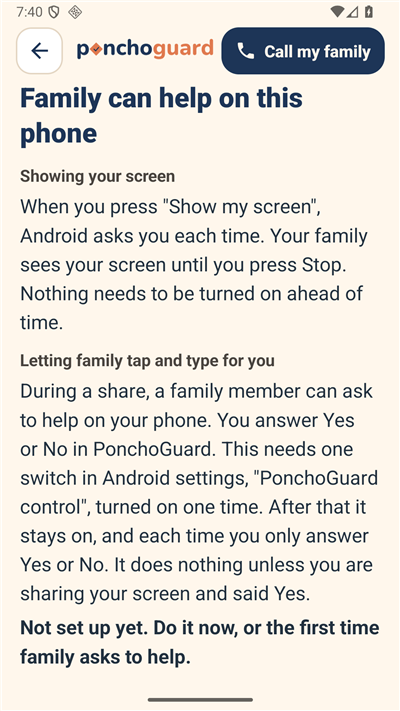
On Android, a helper can tap and type for you during a share, only after you say yes. One-time setup.
While you share your screen on Android, a helper can press Ask to control. You answer Yes, let them help or No, keep it view-only. No answer means no. To work, it needs one switch in Android settings, called PonchoGuard control, turned on one time.
Set it up on a Samsung phone
- In PonchoGuard, open Settings, then Family can help on this phone.
- Tap Open Accessibility settings.
- Tap Installed apps (on some phones: Installed services).
- Tap PonchoGuard control.
- Turn the switch On, then tap Allow.
- Press Back to return to PonchoGuard.
Set it up on a Pixel or most other phones
- In PonchoGuard, open Settings, then Family can help on this phone.
- Tap Open Accessibility settings.
- Scroll to Downloaded apps and tap PonchoGuard control.
- Turn on Use PonchoGuard control, then tap Allow.
- Press Back to return to PonchoGuard.
If the switch is gray (Android 13 and newer)
This can happen when PonchoGuard was not installed from an app store.
- Tap Open PonchoGuard app info.
- Tap the three dots in the top corner, then Allow restricted settings. Confirm with your screen lock.
- Come back and open Accessibility settings again.
Turn it off
- Tap Open Accessibility settings, then PonchoGuard control.
- Turn the switch Off.
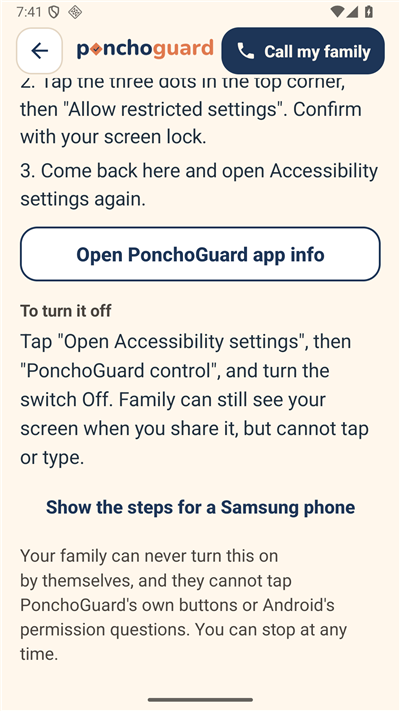
Family can never turn this on by themselves. They cannot tap PonchoGuard's own buttons or Android's permission questions. Press Stop control at any time. On an iPhone, family can look but not touch.