
Show my screen and Family Screen Help
Let a family helper see your screen while you talk, instead of a stranger. You can stop at any time.
Family Screen Help lets your family see what you see. Nothing is shared until you say yes, and a share ends after 30 minutes. It is not recorded, and sound is never shared.
On an Android phone
- On the home screen, tap Show my screen.
- Choose who should see it, then tap Start sharing.
- Android asks to share your screen. Choose Entire screen, then Start.
- Your helper gets a notice. When they join, you see "can see your screen".
- To end it, tap Stop sharing.
On an iPhone
- On the home screen, tap Show my screen.
- Tap Start Broadcast. Your family sees what you see.
- To stop, tap the red bar at the top of the screen, then Stop.
On an iPhone your family can look, but not touch.
For the helper
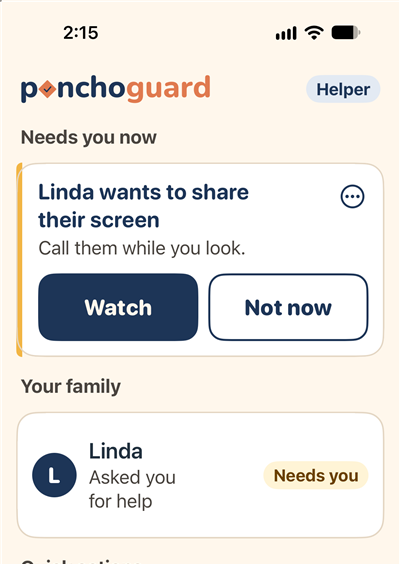
- When your parent shares, you get a notice: "wants to share their screen". Press Watch.
- You can also ask first: on the Family tab, under Screen Help, press the button to ask them to share. Nothing is shared until they say yes.
- Call your parent while you look. Press End when you are done.
Screen Help is part of some plans. If you see "Screen Help is off", ask your family helper to turn it on. You can also tap Show with camera to point the phone camera at something.