
Getting started
Start a family on PonchoGuard, then invite your parent and other helpers.
PonchoGuard works best when one person in the family sets it up. Most often that is a son or daughter, called a helper. The parent can join from a phone, a computer, or with no app at all.
Start your family
- On a computer or phone, go to ponchoguard.com/family.
- Type your email address and press Email me a sign-in link. There is no password to remember.
- Open the email from PonchoGuard and press Sign in to PonchoGuard. The link works once and for one hour.
- Type a Family name and Your first name, then press Start my family. You are the first helper.
Invite your parent
- Open the Family tab and find Invite someone.
- Type their first name. Under They are, choose The parent PonchoGuard protects. You can also invite another helper or a grandchild.
- Press Make an invite link.
- Send the link with Email it or Text it, or press Show a QR code and let them point their phone camera at it.
- Your parent opens the link, types their email, opens the sign-in email and presses Join this family.
An invite link works once, for 7 days, and is shown only once. If it gets lost, make a new one.
Get the app on your parent's phone
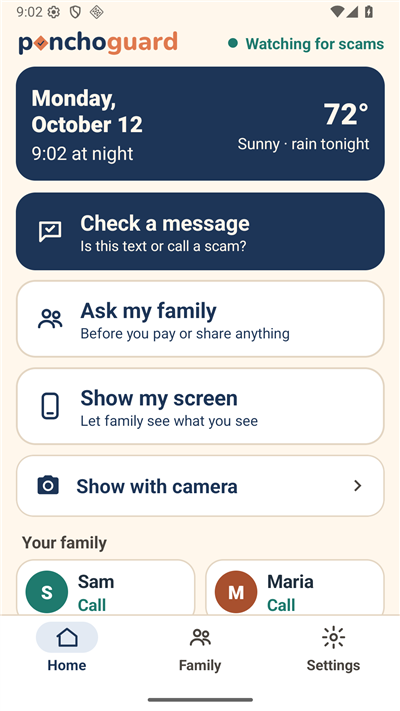
- Install PonchoGuard from Google Play on Android. The iPhone app is coming to the App Store.
- Open the invite link first, as above. Invite links open in the web browser, not in the app.
- Then open the app and sign in with the same email. Type the 6-digit code from the email.
No smartphone? See The phone line and Landline Guard.